 Free Windows app · coming to Microsoft Store
CrepdcM Display Tester — free dead pixel and monitor test for Windows
Check a laptop screen or monitor in about three minutes: dead and stuck pixels, backlight bleed, uniformity, banding, black levels, sharpness, motion blur and viewing angles. Pixel-exact full-screen patterns, one simple question per test and a clear verdict — ideal before you buy a used laptop or keep a new monitor.
Free · Windows 10 (1903+) and Windows 11 · no account, no ads
What it does
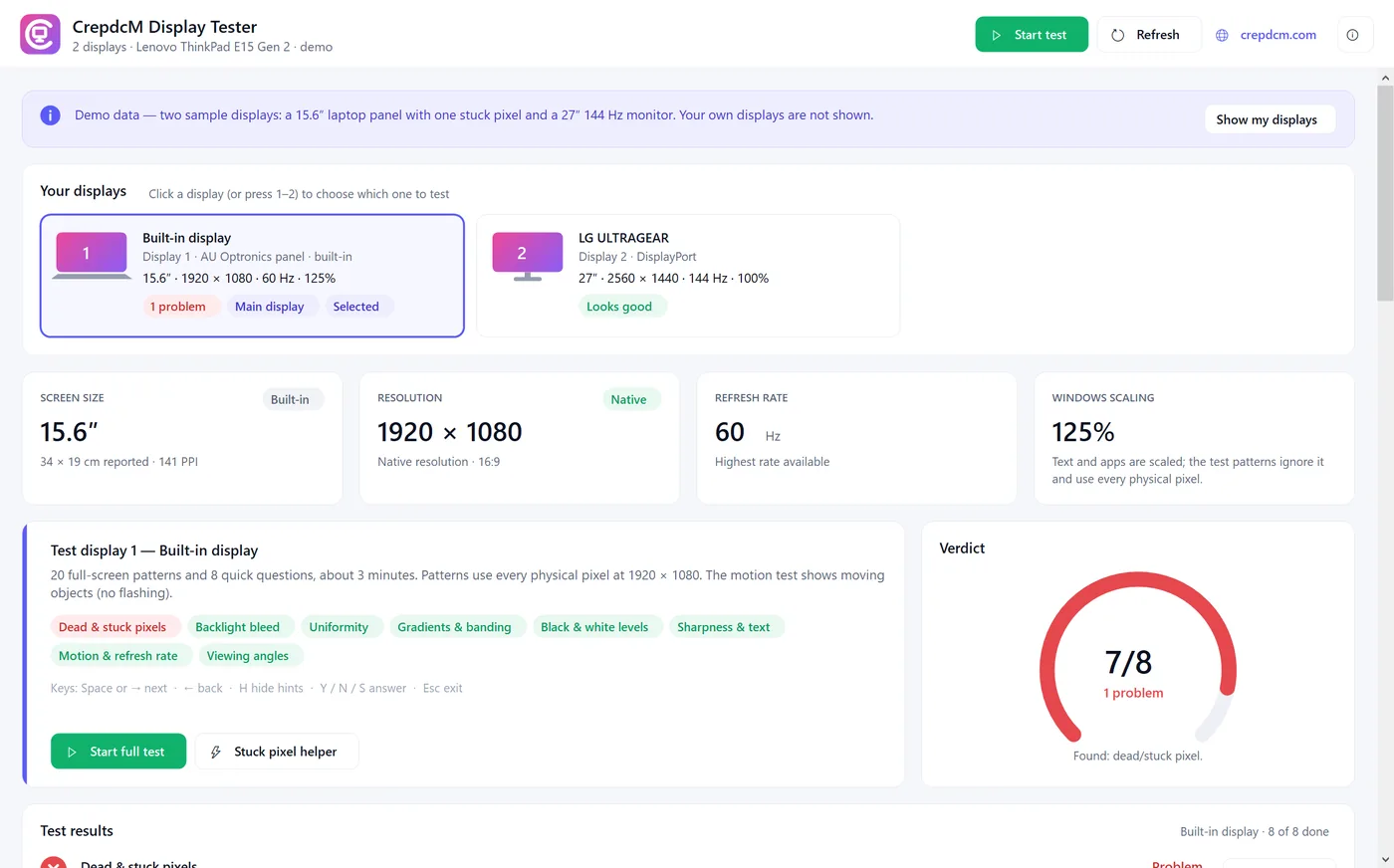
Every display at a glance
Name, maker, size, resolution, refresh rate, scaling, colour depth and HDR for built-in and external displays.
Dead and stuck pixels
Black, white, red, green, blue and grey screens make faulty pixels stand out.
Backlight bleed and uniformity
Pure black and grey fields reveal light leaks, clouding and dark corners.
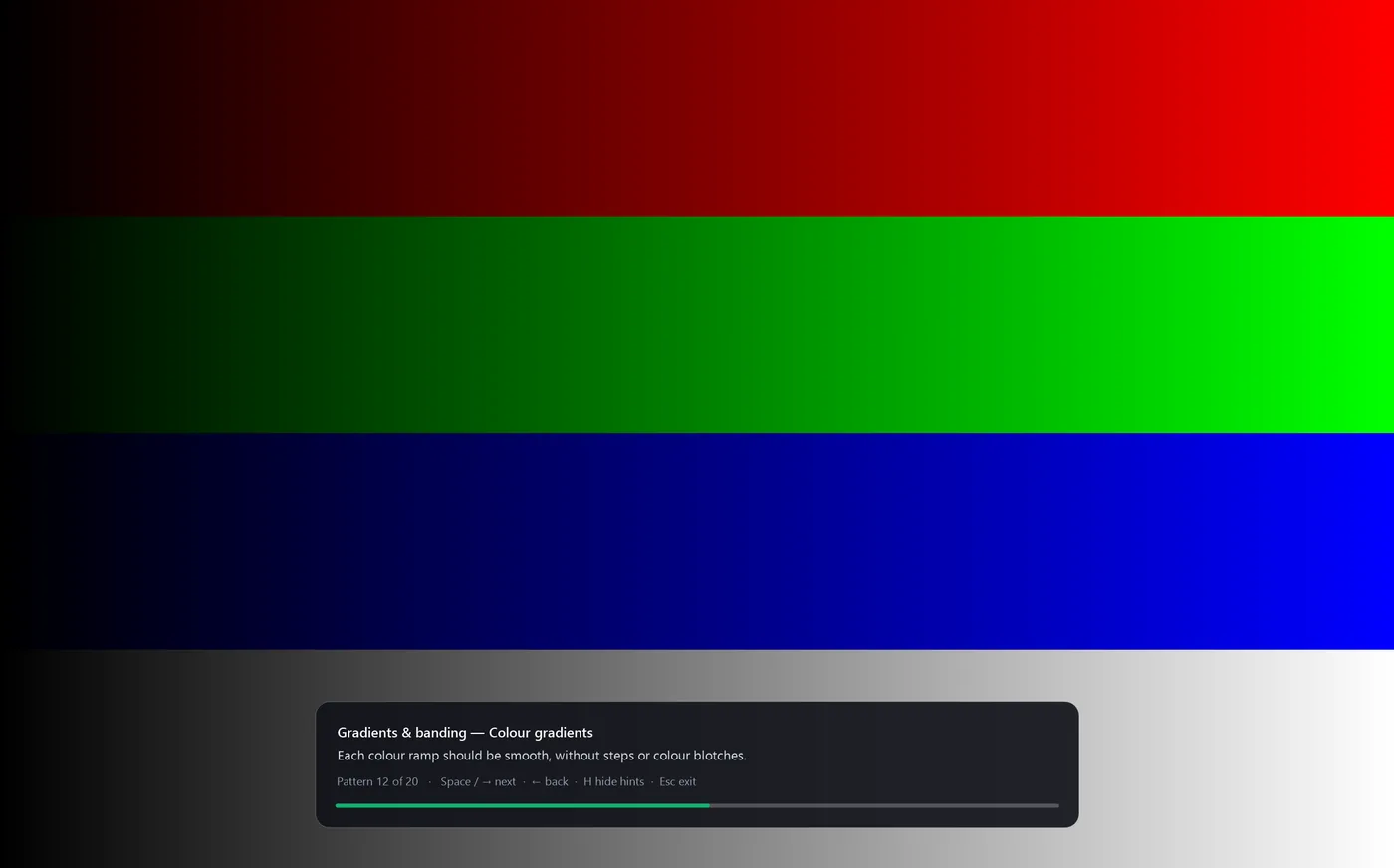
Banding, levels and gamma
Smooth gradients, near-black / near-white steps and a gamma chart.
Sharpness
1-pixel lines, checkerboards and small text, drawn on every physical pixel with no scaling blur.
Motion test
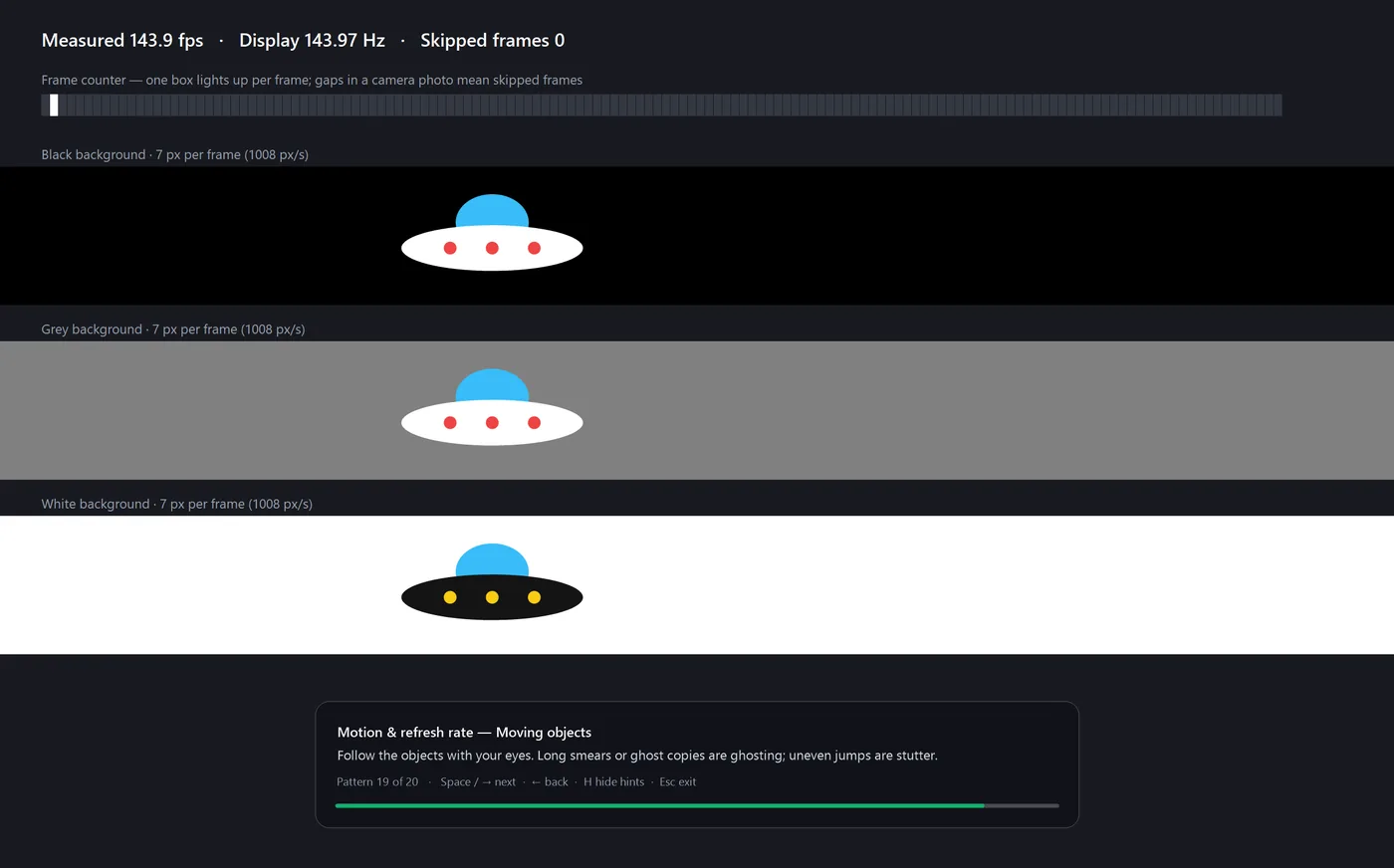
Objects moving in step with the refresh rate show ghosting; the app measures the real fps and skipped frames.
Simple answers, clear verdict
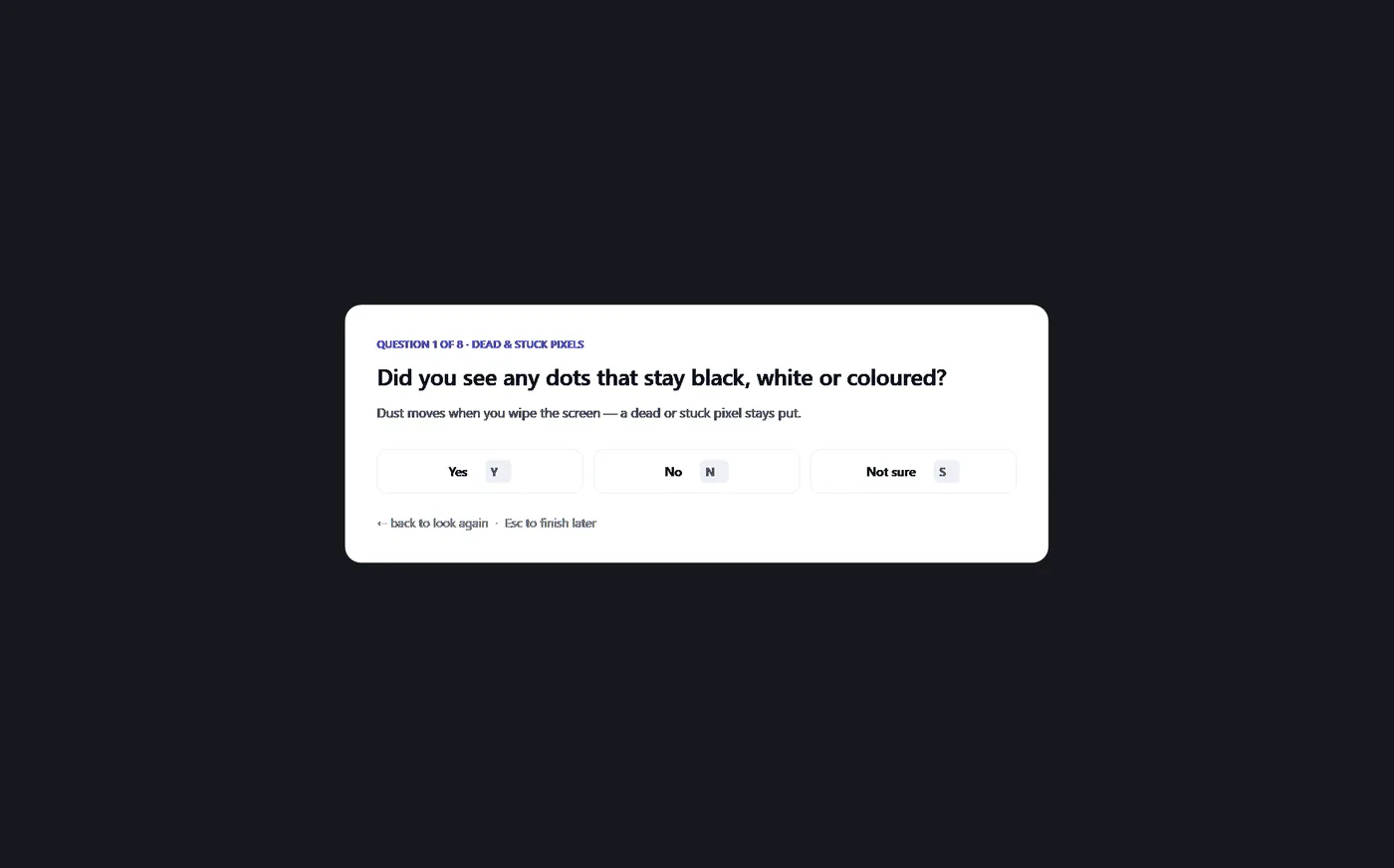
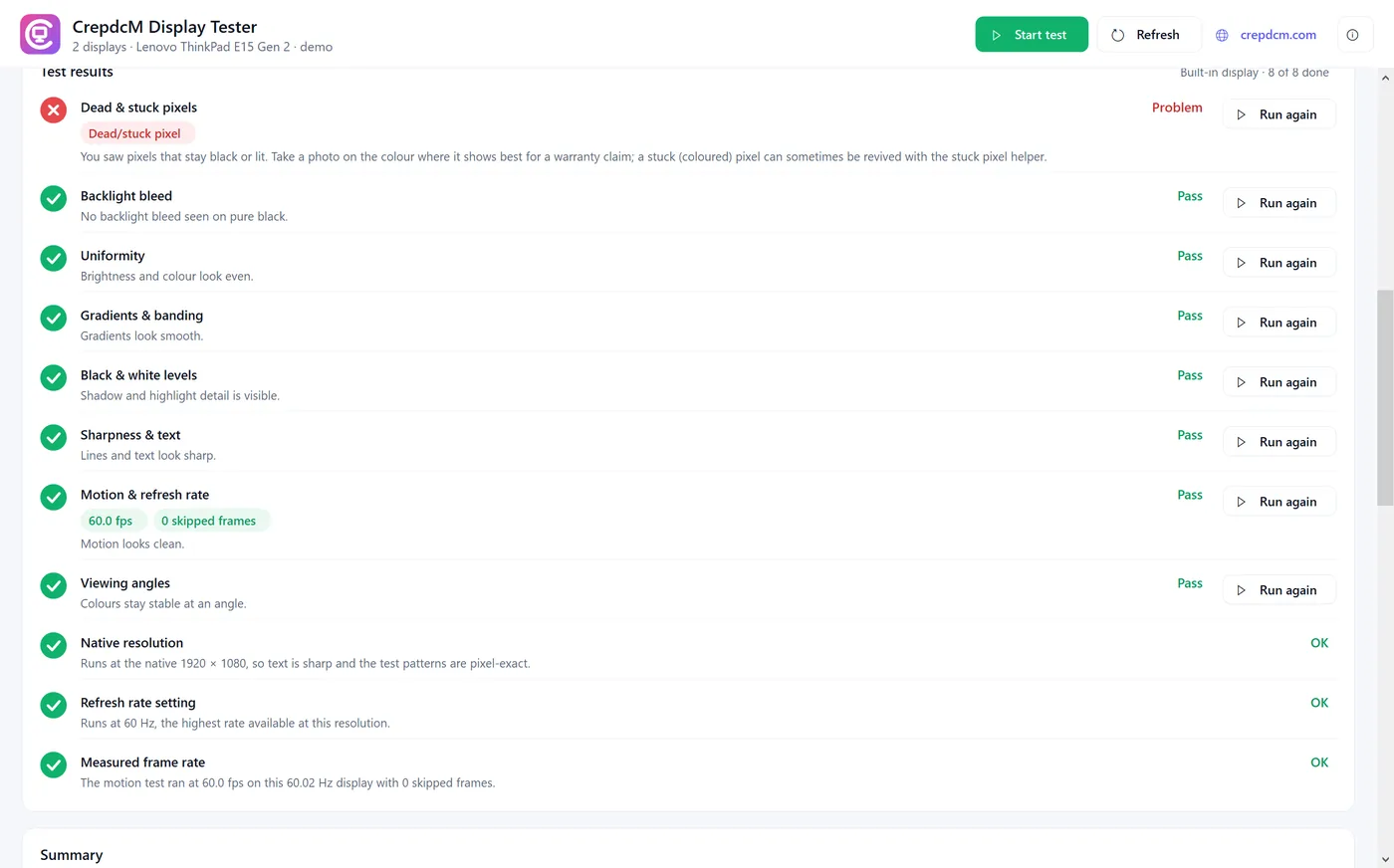
Yes / No / Not sure after each test, a Pass / Problem checklist and recommendations per display.
Stuck pixel helper
Optional, with a photosensitivity warning, a small flashing square and a 10-minute limit.
Screenshots
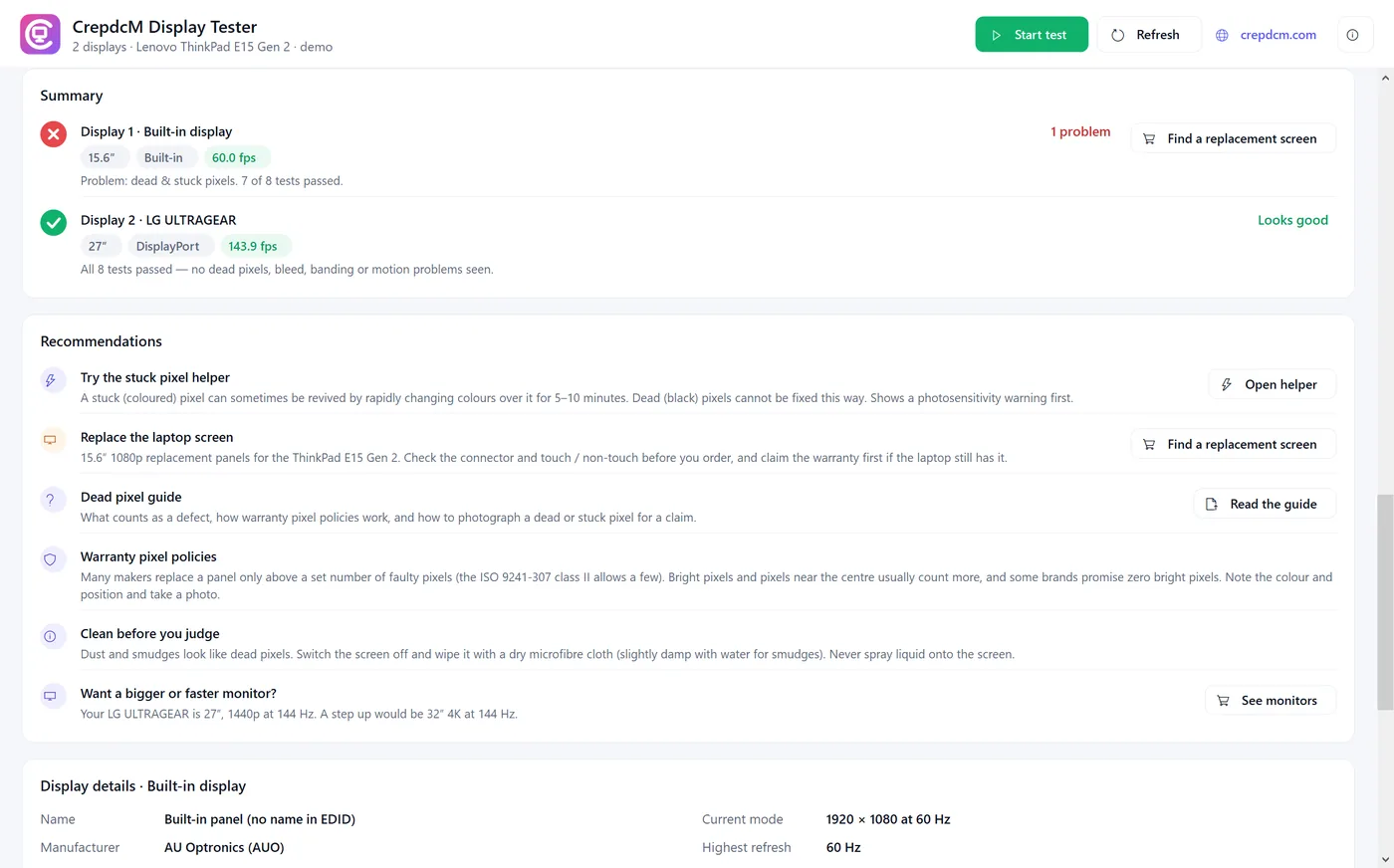
Pick a display
The app lists every connected screen; choose the one to test.
Run the full-screen test
About 20 patterns; press Space for the next one and answer one quick question per group.
Read the verdict
Pass or Problem for each test, settings checks (native resolution, refresh rate) and what to do next.
Privacy
- Display information is read on your PC — never serial numbers, user names or file names.
- Your answers stay on your PC; nothing is uploaded.
- Links open crepdcm.com with only the screen size / refresh rate / resolution class (and your laptop model for replacement screens).
- No account, no ads, no tracking.
Looking after a laptop battery?
CrepdcM is a laptop battery finder: specs, compatible part numbers and the right replacement for 100,000+ laptop models.
Frequently asked questions
Is it really free?
Yes. No account, no ads, no in-app purchases.
How do I tell a dead pixel from a stuck pixel?
A dead pixel stays black on every colour. A stuck pixel stays lit (red, green, blue or white), most visible on a black screen. Dust moves when you wipe the screen; pixels don't.
Can the app fix a stuck pixel?
Sometimes. The optional stuck pixel helper changes colours quickly in a small square over the pixel for 5–10 minutes, which can revive a stuck subpixel. Dead (black) pixels cannot be fixed by software. The helper starts only after a photosensitivity warning and your confirmation.
Why does the app say my display is not at its native resolution?
Windows reports the panel's native resolution. If it runs at a lower one, text and fine detail are scaled and look soft. The app tells you which resolution to choose in Windows Settings.
What does the motion test measure?
It moves objects a fixed number of pixels per frame, paced to the display's refresh, and measures the frame rate Windows actually delivers plus any skipped frames. Ghosting and smearing are judged by eye.
Does it work with high-DPI and multiple monitors?
Yes. The test player covers exactly one monitor and draws on its physical pixels, so patterns stay pixel-exact at 125–200% scaling and with several displays.
Is the test safe for people with photosensitive epilepsy?
The main test contains no flashing; the motion test shows moving objects and can be skipped. The stuck pixel helper flashes, so it is optional, clearly warned and limited to a small area and 10 minutes — don't use it if you are sensitive to flashing light.